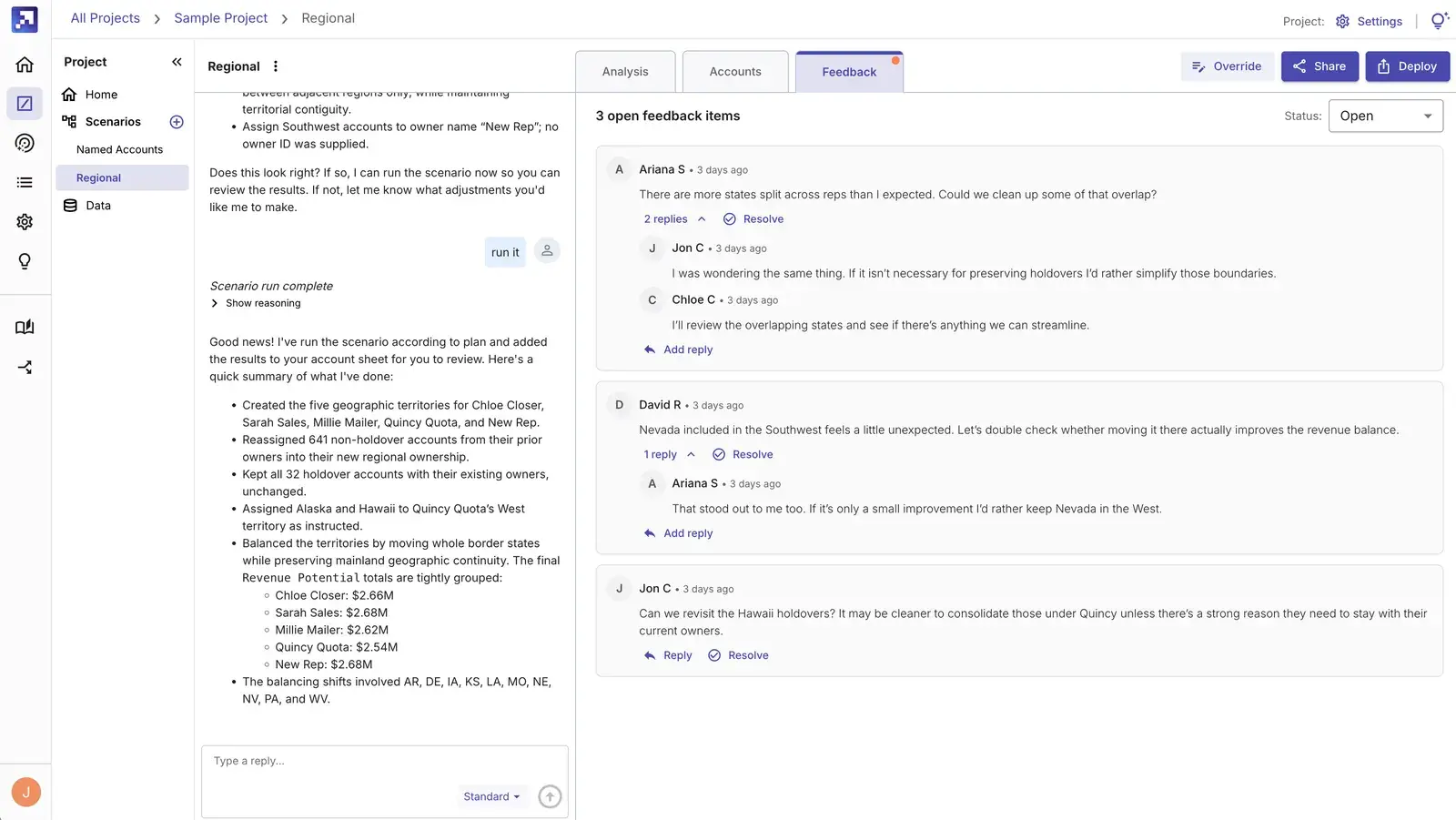
Last week we launched the new Carve, which handles every step of territory planning in one platform: design, feedback, deployment and adjustment.
Since then, we've shipped several updates to the feedback step, because it's usually the hardest part. Building a territory scenario takes an afternoon in Carve. Getting everyone to agree on it can take weeks.
With these updates, sales leaders can review a territory plan, comment on it and ask for changes in Carve, where you can track all of it.
Why feedback is the hard part
When you send a territory plan out for review, feedback comes back from everywhere: Slack threads, email replies, comments in a spreadsheet, and "quick thoughts" in a meeting nobody took notes in.
Sales managers are busy. If giving feedback is harder than replying to an email, they'll reply to an email. Then RevOps has to find every comment, work out what the manager meant, and enter the change by hand. Then it happens again for the next version of the plan.
So we designed Carve's feedback tools around one rule: giving feedback in Carve has to be faster and easier than a spreadsheet or Slack message. Otherwise, managers won't use it.
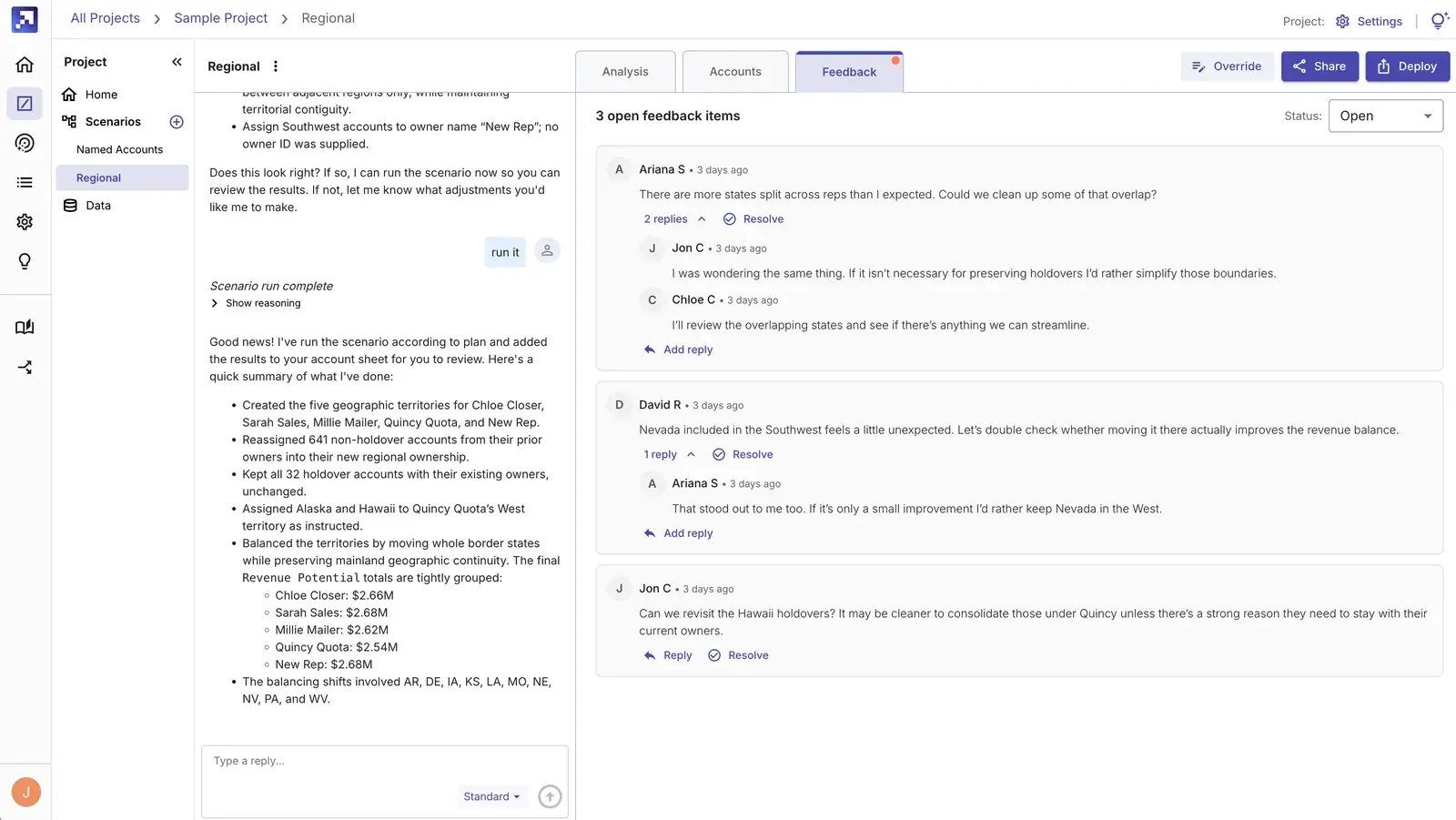
Overrides apply right away
When a sales leader wants to move an account to a different rep, they can override the assignment directly in the scenario. The change takes effect immediately, with no approval queue.
Every override opens a comment thread, and that thread is how you review it. For each override, you can:
- Keep and resolve: accept the change and close the thread
- Revert and resolve: go back to the original assignment and close the thread
Each override card also shows what the scenario originally proposed, so you can see exactly what changed and decide quickly.
Comment on any account
Not all feedback needs a change. Sometimes a manager wants to flag that an account's data looks wrong, or ask why an account ended up where it did.
Stakeholders can now leave comments on any account without making an override. Carve saves every comment with the scenario, so nothing gets lost between versions.
Work through feedback in one place
Once feedback comes in, you need to get through it quickly. Carve now makes that easier:
- Filter to open feedback: show only the accounts that have unresolved comments or overrides
- Jump to the account: click a comment to scroll straight to the account it's about
- Focus on one account: click a row to show only that account's comments in the feedback panel
We also made the layout use more of the screen, so you can see more of the plan while you review.
When you're ready, the Carve agent can make changes based on the feedback, and you can send a new version of the scenario back out for review. You can go through as many rounds as you need without losing a comment.
Share with anyone, even if they don't have access yet
Getting the right people into a scenario used to be one of the biggest sources of friction. If someone without access opened a share link, they couldn't get in.
Now they can request access directly from the share link:
- If they're new to Gradient Works: your org admins and the project owner get an email. Approving the request creates their account.
- If they already have an account: the project owner gets the email to approve.
Once approved, they get an email with a link that takes them straight to the scenario. Approval links expire after seven days, and Carve blocks repeat requests for the same scenario for 24 hours, so nobody's inbox gets flooded.
Try the new feedback tools in Carve
Planning season is here, and the feedback rounds are where it usually drags. With these updates, you can collect every comment and override in Carve and work through them in the same place.
If you already use Carve, log in and share your next scenario for review. If you're new, the free plan will get you started. No credit card required.